How do I set up the program in 10 minutes?
Setup in 10 minutes guides you through the setup with pictures, and it is also the checklist to go through at installation. The owner (or whoever helps him) opens it from the card on the Workshop page, from the top of the Settings list or from the Workshop details dossier; it can be reopened any time, the program remembers how far it is. Where a required step is missing, an orange dot shows it in Settings.
Open it in the program: Setup in 10 minutes.
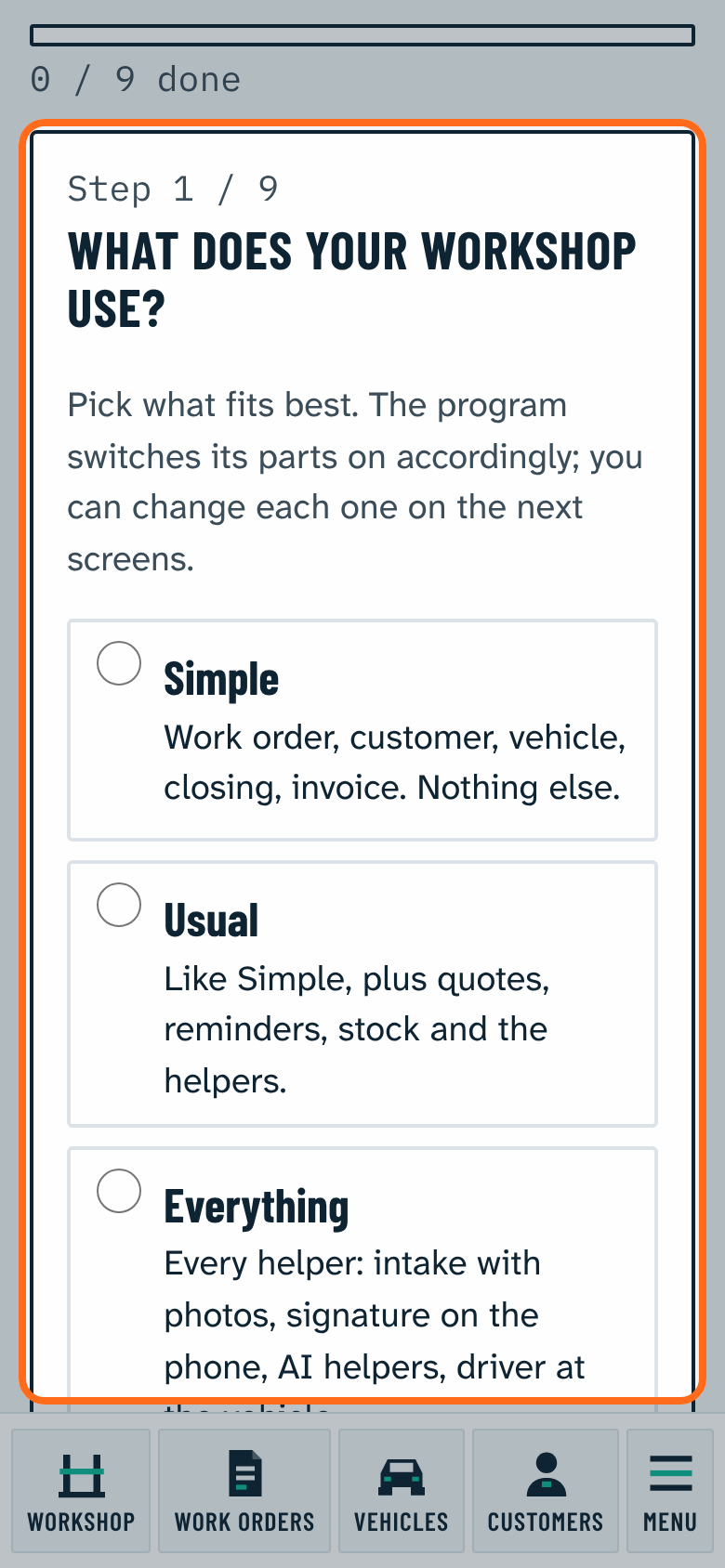
1. What does your workshop use?
Pick one of three cards: Simple (work order, customer, vehicle, closing, invoice), Usual (plus quotes, reminders, stock and the helpers) or Everything (every helper). The program only switches on what its package allows; none of them switches on the paid SMS add-on, its price is accepted separately. Required step.
2. Work order
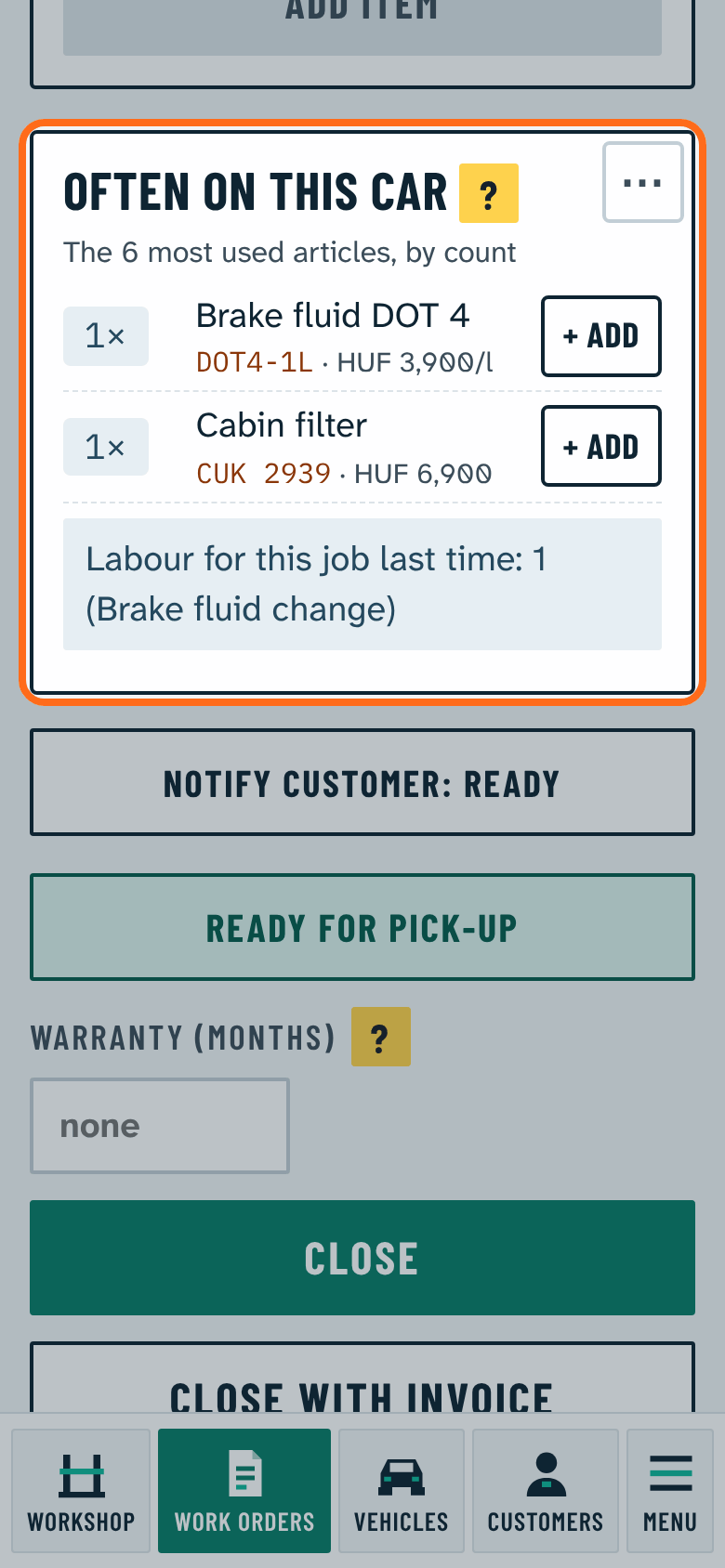
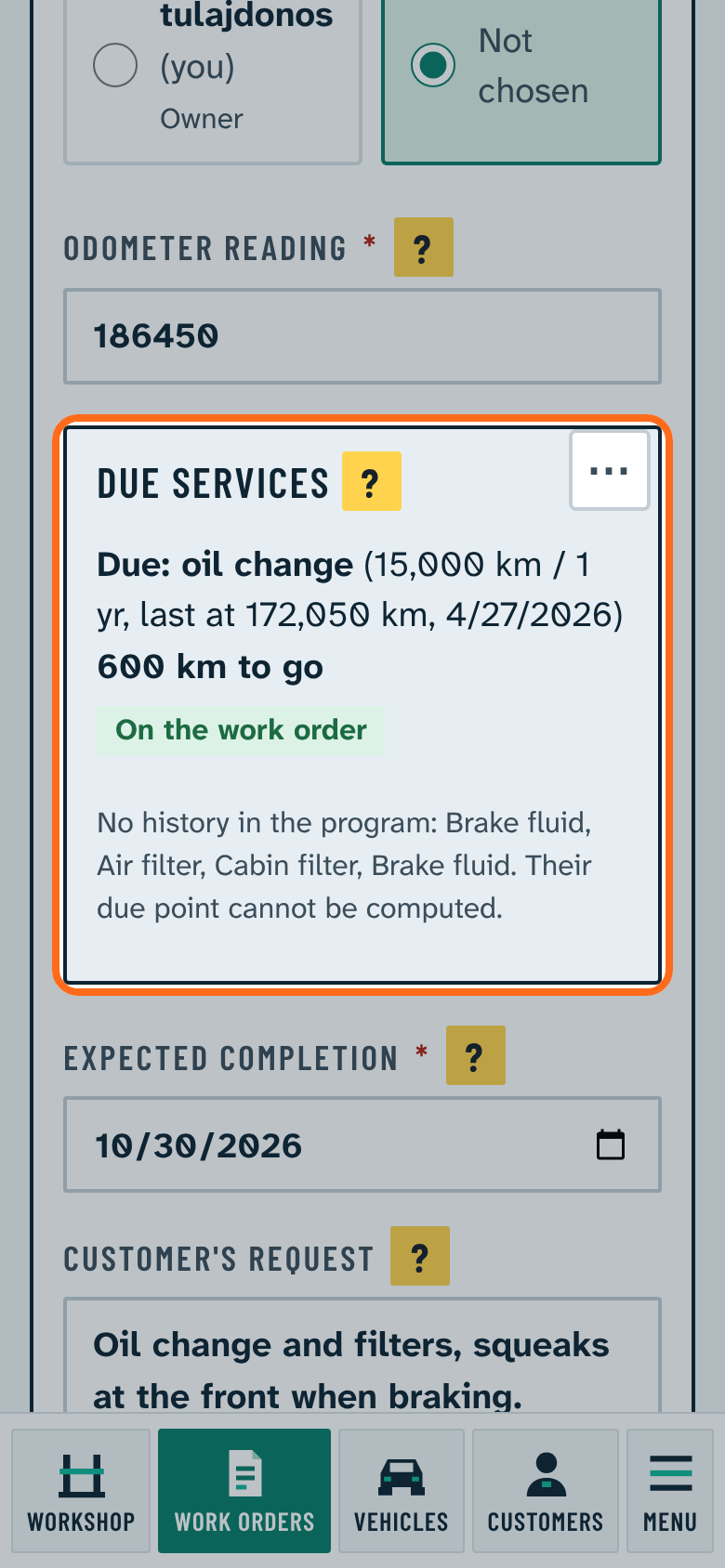
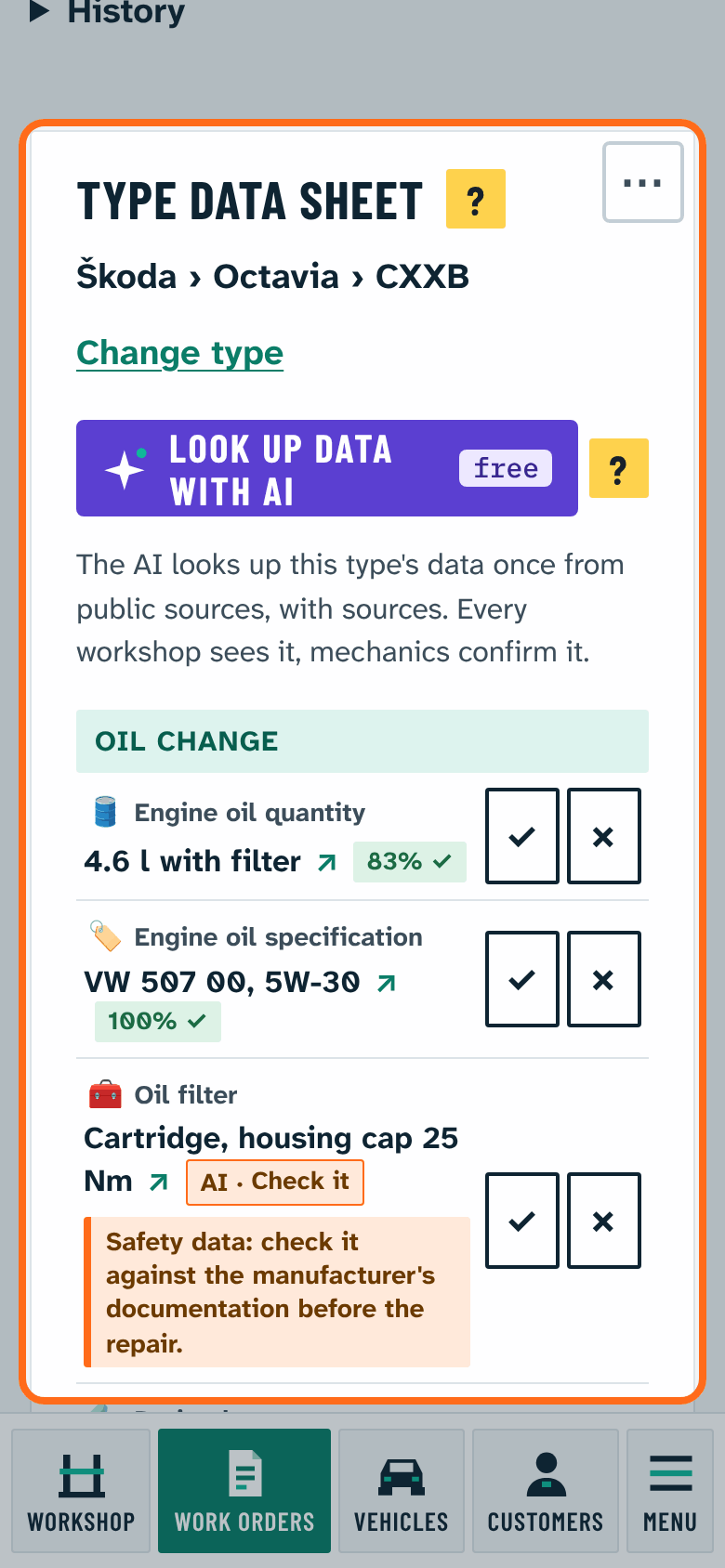
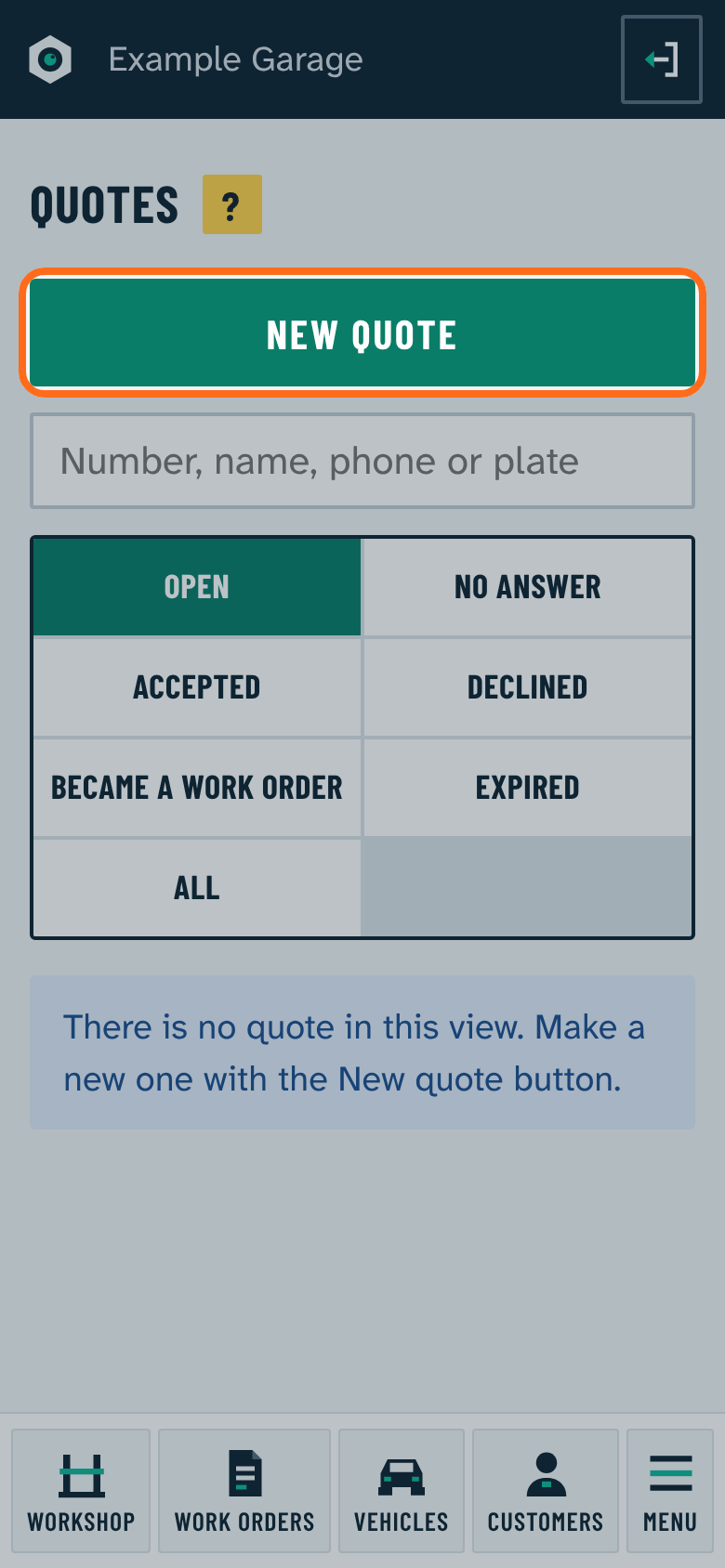
For every part a picture from the program, one sentence about what it is for, and a switch. Here are for example Often on this car, Used on this car before, Due service warning, Type data sheet at the bottom of the work order, the intake with photos, the signature on the phone and the Quotes module.
3. Customers
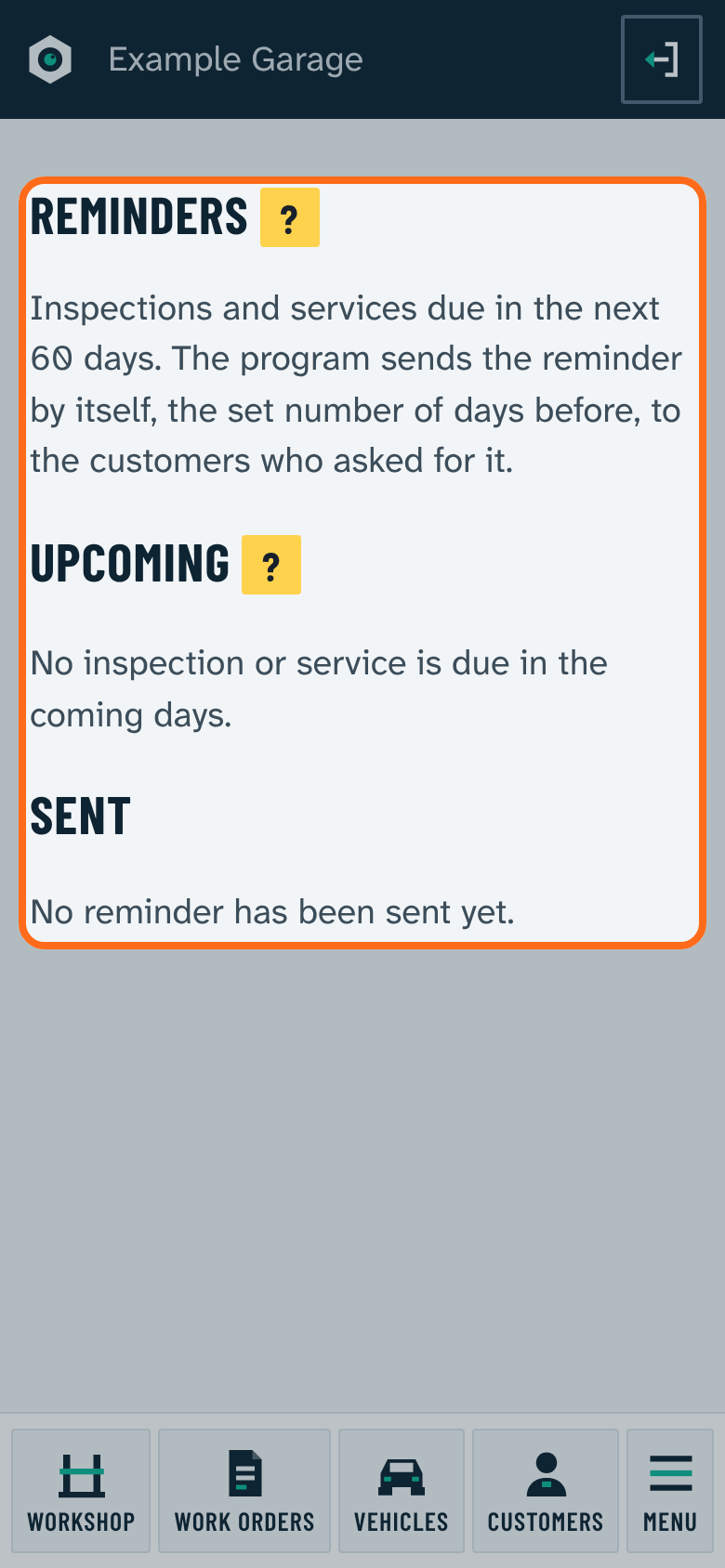
SMS sending, reminders, the declined work e-mail, the driver at the vehicle.
4. Stock
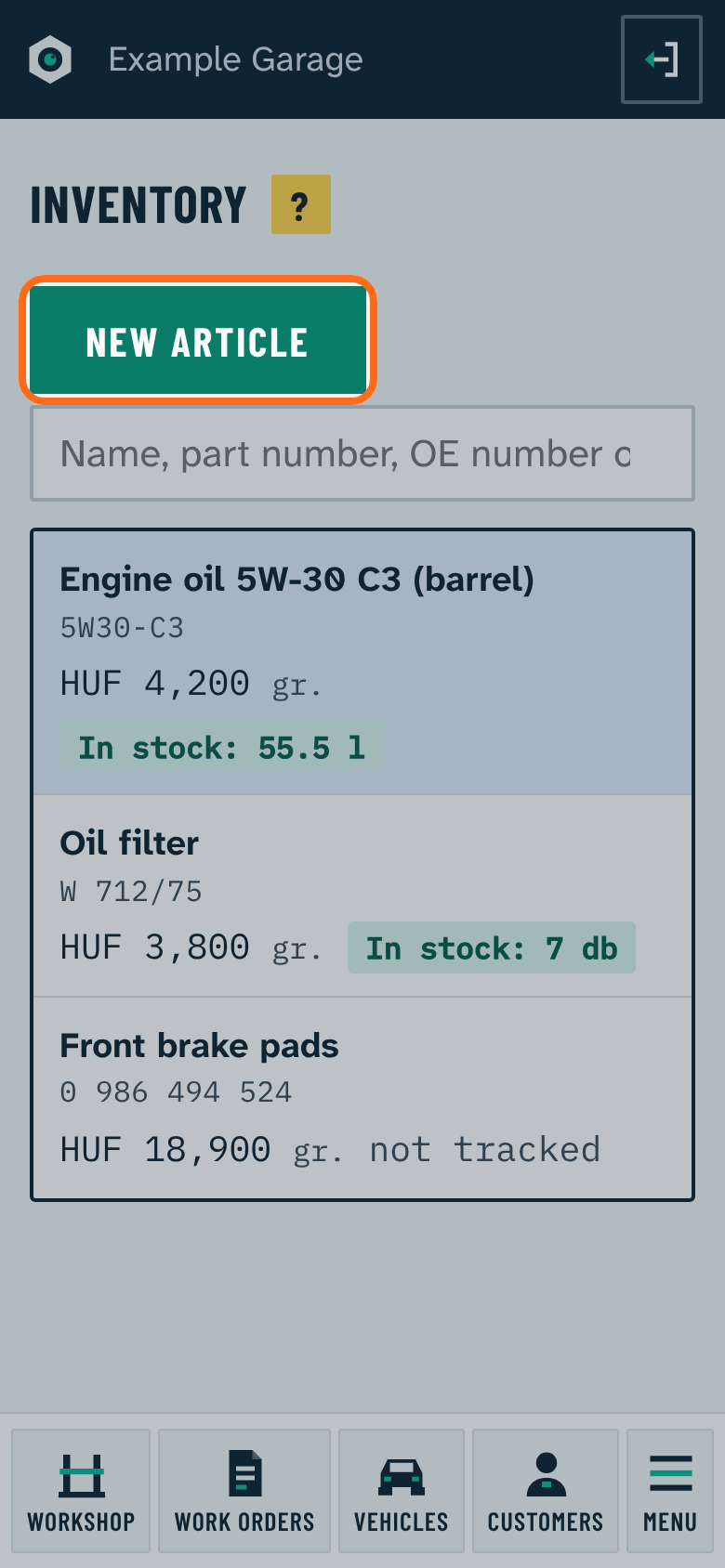
Stock keeping with receipts and stocktake, barcode scanning with the phone camera.
5. Money and invoice
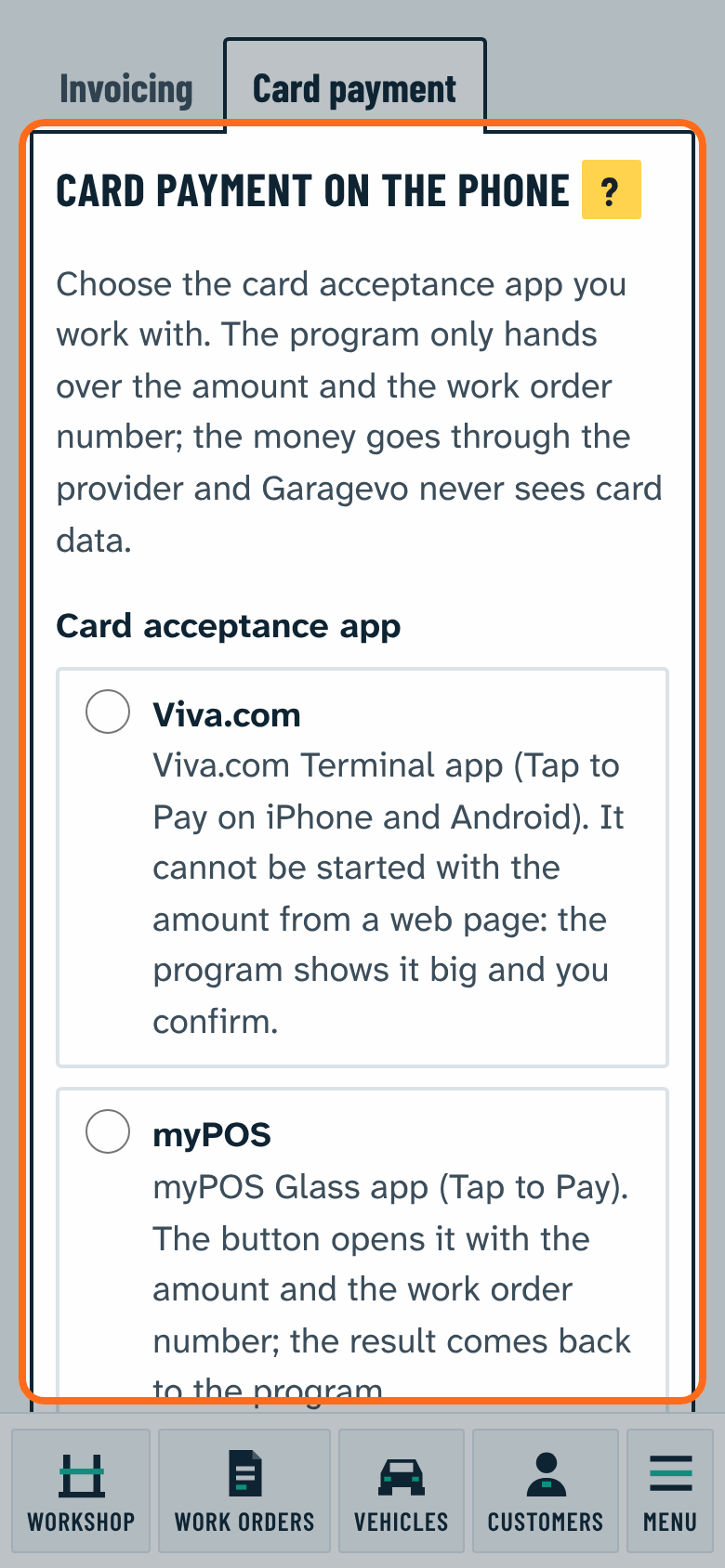
Card payment on the phone, with the workshop's own card acceptance app.
6. AI helpers
Reading the registration certificate photo, filling the type data sheet and dictated lines.
7. The workshop's data
What the program cannot guess: name, operator, registered seat and workshop address, tax number, phone. The same form as in Settings › Workshop details. Required step: while something is missing, Next is grey and says what is missing.
8. Opening hours (optional)
The Your car is ready notice can say when the customer may come. You can skip this.
9. Invoicing (optional)
The invoicing provider and its key. A work order can be closed without an invoice too. You can skip this.
10. NAV incoming invoices (optional)
To receive supplier invoices from NAV Online Számla: the four values of the NAV technical user (login, password, XML signature key, XML exchange key), step by step. Only useful with the NAV incoming invoices and smart receiving option. You can skip this. In detail: NAV incoming invoices.
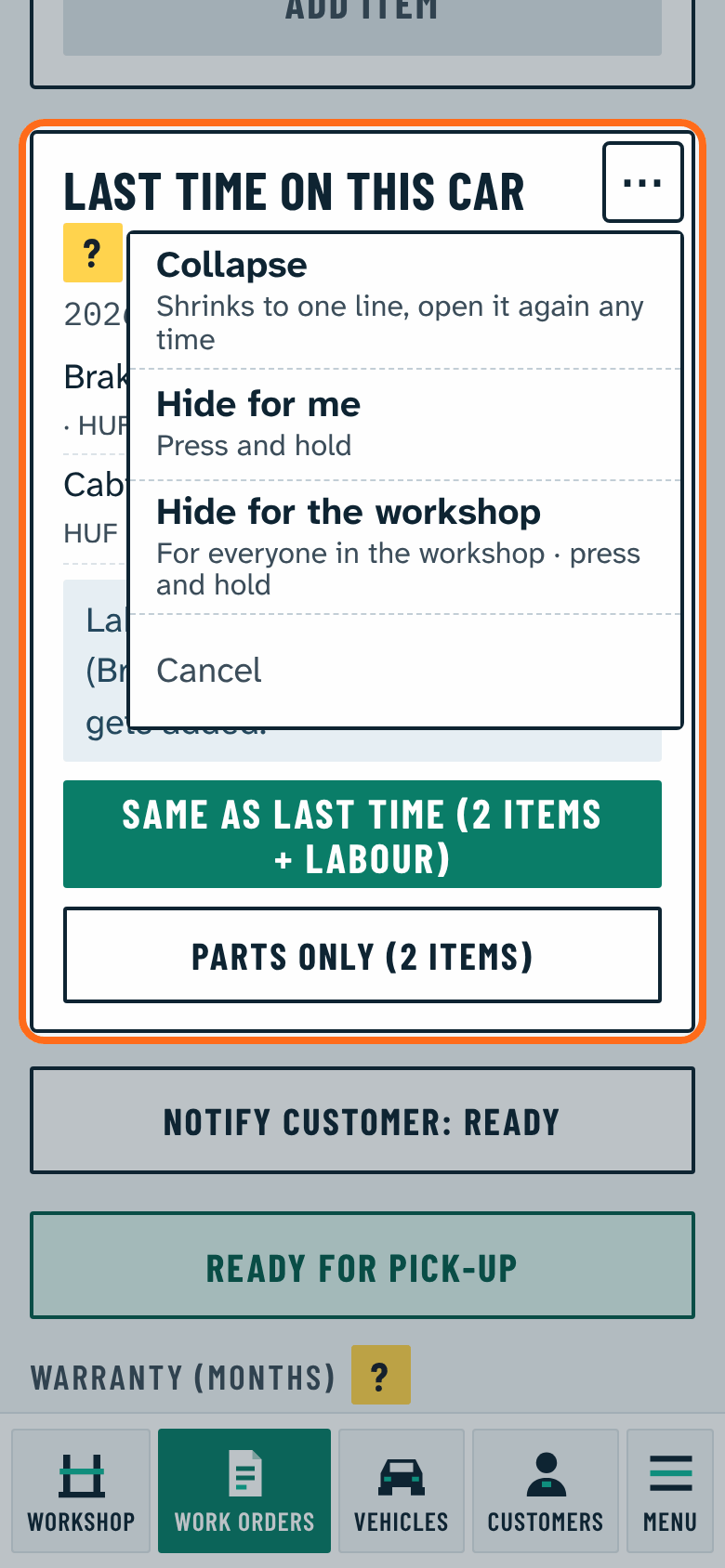
Hide what bothers you
Helper boxes (for example Often on this car) have a small ⋯ button in their top right corner. Collapse: shrinks to one line, one tap opens it again. Hide for me and Hide for the workshop (owner, administrator): hold the button for half a second until the ring is full. A hidden part comes back with one tap under Settings › My account › Hidden parts, one hidden for the workshop under Options. The menu, the bottom bar, the work order, the customer, the vehicle and closing can never be hidden. Some helpers are hidden for mechanics from the start.